Graphic Design | Web Design | Web Tips
How to Resize and Optimise your Images for the Web
Ever wondered why your images look top notch on your laptop, but end up pixelated online? Maybe they even take ages to load on your website? Don’t worry, we’ve all been there…
When it comes to creating a spectacular website, the quality and size of your images play a crucial role. Uploading correctly sized and optimised images will make your website load faster and look more professional, which is exactly what customers will be judging you on. Not to mention it also affects your Google search ranking.
Let’s dive right in!
Understanding Aspect Ratio
The first thing we need to get straight is – Aspect-Ratio.
Aspect-ratio is essentially the relationship between the width and height of an image – expressed as width:height.
For our purposes, we need to understand that when the width is larger than the height, it is called a landscape image, and when the height exceeds the width we call it a portrait image.
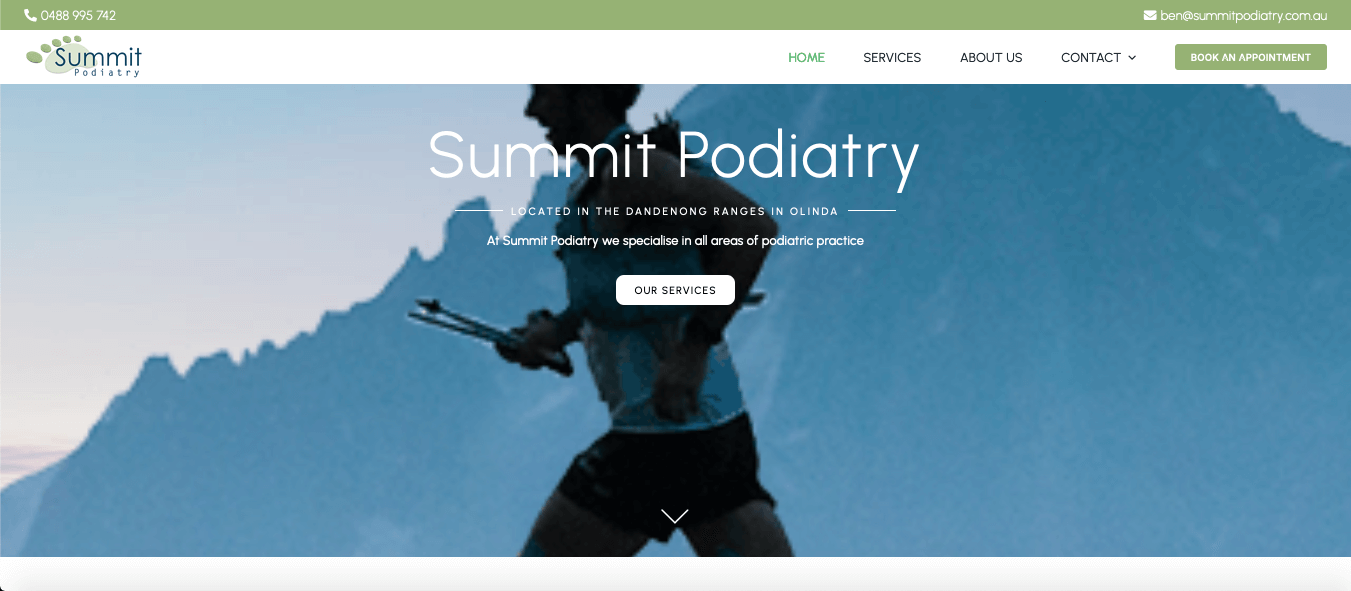
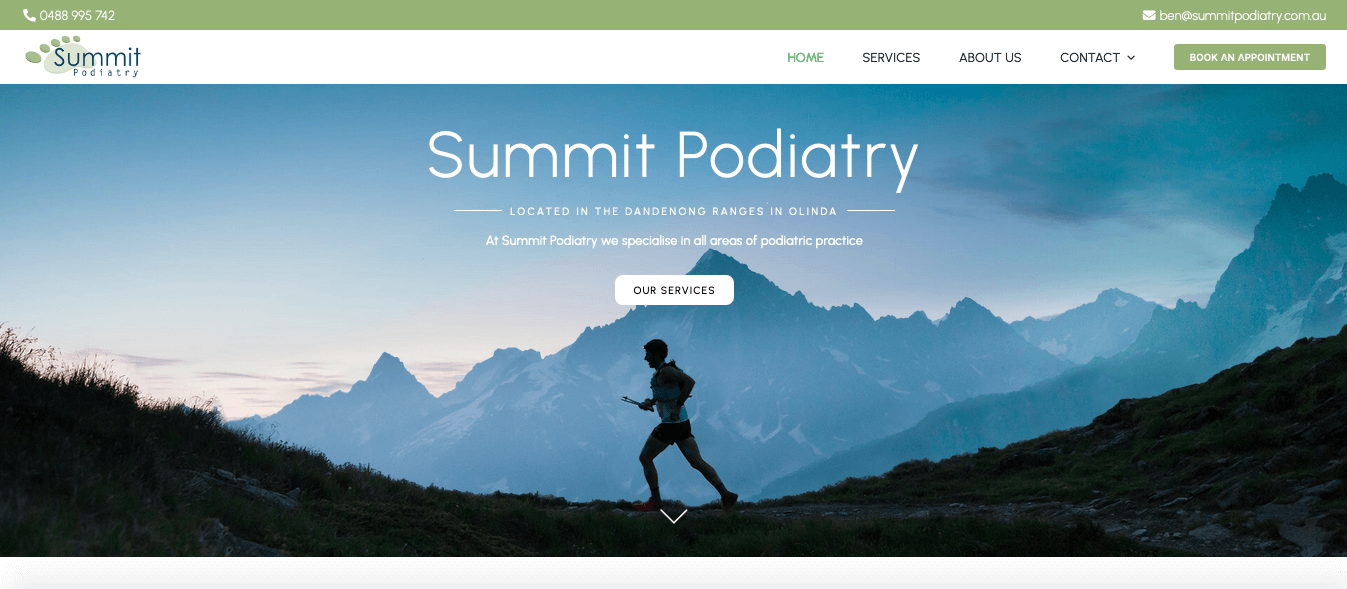
You need to be aware of this before you try uploading an image. If, for instance, your goal is to fill a large wide banner area with a background image, a portrait aspect-ratio just won’t cut it, because it will have to zoom in to the image so far to make it wide enough to fill the banner.
We never want our images to look cramped, awkward, pixelated or blurry like this:
We want them to look sharp and well positioned, providing space for the design to breathe:
With this in mind, let’s take a look at getting an image ready for the web.
Editing Images for the Web in Photoshop (or Free Alternatives)
Using Photoshop:
First, we need to ask where our image is going. Does it need a Portrait or Landscape aspect-ratio? Once we have selected an appropriate image, we need to move into a photo-editing suite of some kind.
Since it is industry standard, most of the following steps can easily be transferred to other software.
So let’s go through them quickly:
- Open your image in Photoshop.
- Go to Image > Image Size.
- Make sure the ‘Constrain Proportions’ box is checked to maintain the aspect ratio.
- Enter your desired width or height, and Photoshop will automatically adjust the other dimension.
- Save the image for web by going to File > Export > Save for Web (Legacy). Choose JPEG or PNG format and adjust the quality slider to balance file size and image quality – our recommendation for JPGs is to go for something between 5-6.
Free Alternatives:
- GIMP: A powerful open-source image editor with similar functionalities to Photoshop.
- Pixlr: A web-based editor that’s easy to use and doesn’t require any software installation.
- Canva: Great for quick edits and has a user-friendly interface.
Ok great, but I can hear you asking, ‘Why does the size matter?’, and ‘How do I determine what size is best?’
The truth is, it depends…
Why Size Matters: Avoid Massive and Tiny Images
Uploading images that are too large can significantly slow down your website, especially on mobiles. This is not great, because stats reveal most people are very impatient when it comes to slow websites, not to mention the penalties search engines will give your site in the ranking.
And yet if we upload images that are too small, our images will look pixelated, blurry and downright ugly, leading people to equate your business with unprofessional practices.
So the right answer here depends again on where your image is meant to go. If it is a tiny icon in a button it ought to be relatively small, if it is a large hero banner it ought to be relatively large.
Here are some base recommendations to get you in the ballpark:
Small Square Image – 250w x 250h px
Medium Content Image – 1120w x 800h px (landscape) or 800w x 1120h px (portrait)
Large Background Image – 1920w x 1080h
And this brings us nicely to optimisation, a crucial final step in the process.
Optimising Images with TinyPNG
Once you’ve resized your image, the final step is optimisation. This reduces the file size without compromising quality, ensuring your images load as fast as they can.
- Visit TinyPNG.
- Upload your image by dragging and dropping it into the upload box.
- TinyPNG will compress the image, reducing the file size while maintaining quality.
- Download the optimized image and then upload it onto your website. Voila!
We know going through all these steps every time you upload an image is a bit of a pain, but this is just the reality of publishing online. Once you’ve done it a few times it becomes second nature. At the end of the day, images are there to enhance your website, not hinder it, so it’s worth every second it takes to make sure they are web-friendly!
Thanks for reading, we hope this MOG Blog has been helpful to you in some way!


